MindManager 7 ToDoList AddIn development Part 4: Fixing the Registry Settings in the Setup Project

The MM VS2005 AddIn wizard created a set of Registry settings for my project, and the friendly folks at Mindjet’s Dev Support team helped me fix a problem with my project (and in the process had to remove most of those Registry settings). Well, now we’re taking it back [anyone else remember Bono’s intro to Helter Skelter?].

It took me a bit of time to track down the hidden place where Visual Studio “hides” the Registry settings for a Setup project: right-click the Setup Project (“AddInSetup_en” in this case), choose View, Registry. There’s a stub for each hive, but not all of them contain actual Registry Keys or Values.

For my project, the only Key with any entries was HKLM\Software\Mindjet\MindManager\7\AddIns, with the Values (though different settings) that I’d noted earlier. The ProgID that it’s setting is ParanoidMike.ToDoListBuilder.AddIn which isn’t really representative of what I’m intending to release – ToDoListBuilder is just one portion of the functionality I want to provide (i.e. I’ve also spec’d out a ToDoListManager class that’ll be a peer to ToDoListBuilder).

Also, if I’m going to define a namespace rooted in ParanoidMike, I figure I should use the application name as the next-level-down, and then describe the actual code/app/add-in as the third-level-down. That gives me the namespace ParanoidMike.MindManager.ToDoListAddIn, so I’ve replaced the existing ProgID with this as the new ProgID (and .NET namespace for my source code). I deleted the old Registry entries that reference this ProgID, added the new ProgID and its entries, and also added the HKCR settings that were still missing when I published this article.

That results in the following Registry entries populated in the AddInSetup_en project:

Complete Set of Registry Entries for MM7 Add-in

HKLM\Software\Mindjet\MindManager\7\AddIns

Value

Data type

Setting

Description REG_SZ MindManager ToDoList AddIn for MM7 – Built by ParanoidMike
FriendlyName REG_SZ MM7ToDoList
LoadBehavior REG_DWORD 2

HKCR\ParanoidMike.MindManager.ToDoListAddIn

Value

Data type

Setting

(Default) REG_SZ ParanoidMike.MindManager.ToDoListAddIn

HKCR\ParanoidMike.MindManager.ToDoListAddIn\CLSID

Value

Data type

Setting

(Default) REG_SZ {33B60353-E8F3-4F38-98B6-41C7E5C6D32B}

Note: this little tip (HowTo: Create a Default Registry Value in Registry Editor) saved me a lot of trouble futzing around with these infrequently-created values.

Note: if you’ve used the MM7 AddIn template for Visual Studio, the CLSID above can be found in the Connect.cs file just under the ///

comment, like so:

GuidAttribute("33B60353-E8F3-4F38-98B6-41C7E5C6D32B")

Open Issue: ProgID versioning

There’s conflicting evidence on whether it’s best to create the ProgID using the “.1” suffix notation, so that the ProgID can be rev’d, or whether it’s just as good to leave it without the “.1” suffix and replace it upon every install (upgrade?). For the moment, until I stumble across anything better, I’m just going to leave it without.

Open Issue: ProgId in AddIn’s source code

After cleaning out the old entries from my computer’s Registry and testing this new set of code, I noticed that there was still the old ProgId referenced in the Connect.cs code:

    /// 
    ///   The object for implementing an Add-in.
    /// 
    ///    
    [
     CLSCompliant(false),
     ComVisible(true),
     GuidAttribute("33B60353-E8F3-4F38-98B6-41C7E5C6D32B"), ProgId("ParanoidMike.ToDoListBuilder.AddIn")
   ]

Since the add-in loaded and executed successfully, I’m now left to wonder what effect this ProgId entry is really supposed to have. Clearly it doesn’t affect the operations of debugging the code (i.e. hitting F5 from within Visual Studio 2008 and waiting for MindManager to launch), but I can’t imagine it’s just there for decoration either. It’s possible that, because I haven’t rebooted since I cleaned out the Registry and updated the AddInSetup_en project settings, there’s still enough of this information cached to allow the Add-in (with the same CLSID) to still work.

I’m taking no chances of a vaguely-specified error down the line, so I’ve updated this ProgId entry to the current value, but if anyone knows how these entries are related, I’d sure love to hear it.

MindManager 7 "ToDo List" Add-in development: Notes to Self

Notes to Self: Object Model stuff I Might Use in my Add-in

  • Application.ActiveDocument: the currently-displayed Map
  • Application.Visible: enables/disables the MM UI
  • DocumentObject.Guid, DocumentObject.ResetDirty: this seems like a generic object type within the MM object model — might be useful for manipulating a whole collection of different objects at once
  • Document.Attributes: collection of document’s custom attributes
  • Document.CentralTopic
  • Document.Guid
  • Document.IsModified
  • Document.Properties
  • Document.AssignMapMarkers(): assigns a map markers template to the document
  • Document.GetAttributes()
  • Document.Range(): returns a new Range collection of all the specified objects (topics, boundaries, relationships) in the document
  • Topic.AllSubTopics: subtopics connected to the topic
  • Topic.Attributes
  • Topic.Document: the document in which the Topic is found
  • Topic.Guid
  • Topic.Icons, Topic.UserIcons
  • Topic.IsFirstSibling: TRUE if the topic is the first in a set of siblings
  • Topic.IsMainTopic: TRUE if the topic is a child of the Central topic
  • Topic.IsSubTopic: TRUE if the topic is a child of another topic
  • Topic.Level
  • Topic.NextSibling
  • Topic.ParentRelationship
  • Topic.ParentTopic
  • Topic.SubTopics, Topic.UnfilteredSubTopics
  • Topic.Synchronization: ????
  • Topic.Task
  • Topic.Text
  • Topic.TopicLabel
  • Topic.TopicPrefix: sets the prefix for the topic — something to do with “numbering”
  • Topic.Type
  • Topic.AddControlStripType()
  • Topic.AddSubTopic()
  • Topic.CreateHyperlinkToTopicByGuid(): Cool! This could be used to hyperlink topics in ToDoList back to their original Topics. Might be useful to sync properties, attributes automatically.
  • Topic.GetAttributes()
  • Topic.NewTopicFinder(): helpful for traversing sub-topics from the current topic.
  • Topic.ResetDirty(): resets dirty bit of this and all subsequent objects. [Could be used to determine if a Topic has been changed since last “sync”.]
  • Topics.Add()
  • Topics.AddWithGuid(): creates new Topic with a given Guid
  • CustomProperty.Value
  • CustomAttributes.GetAttributeValue(), CustomAttributes.SetAttributeValue()
  • Task.IsDone
  • Task.IsValid
  • Task.Priority
  • Task.Topic: the parent Topic for this object
  • TextLabels.AddTextLabel()
  • Icons.AddStockIcon(), Icons.AddCustomIcon()
  • Icon.Delete()
  • Utilities.Execute

Notes to Self: Questions to Research

  1. What’s the difference between a CustomProperty and a CustomAttribute?
    • Attributes are persistent
    • Nick Duffill has more info here
  2. Is a TextLabel the same thing as a Text Marker?
  3. What’s the difference between a CategoryMarker, a CustomIconMarker and a CustomIcon?
  4. What Events are available to which to respond (such as Topic.Moved)?
    • Nick Duffill alludes to “topic-delete” and “topic-add” here
  5. Is there a way to find the current position among siblings for a Topic? Could there be a Property that indicates the Topic’s position?
    • There is the Topics.Item property…
  6. Can you get a handle to a Topic when you know its Guid? Do you need to be attached to its Document, or can you search all open Documents (e.g. searching through the AllDocuments or Documents collections)?
  7. Is there some way (e.g. derive a class from the Topic class) that would allow me to define a Property whose Value was equal to its 1-index position among its siblings?
  8. Does the Dirty flag get toggled automatically as soon as any change is made to the object? Or is this a flag that must be explicitly set?
  9. Does the Dirty flag inherit up the tree — i.e. if any Object in a Document has the Dirty flag set, does that implicitly “set” the Dirty flag on the Document as well?
  10. Can you reset the Dirty flag on a Document, and would that reset the Dirty flag on every Object in the Document all at once?
  11. Could the InsertCustomProperties event be used to automatically propagate a Property to another attribute on the Topic object (e.g. taking the Index of a Topic next to its ToDoList siblings and convert that to a custom ToDoListPriority property, or to use the Priority icon’s value as a ToDoListPriority value)?
  12. Is the SetCustomPropertyValue event the one that’ll let me trigger when the user changes the Topic’s ToDoListPriority value (either automatically, by moving the Topic to a different position among its List siblings, or manually, by typing the value in or selecting it from a pre-populated list) to propagate that value back to the source Topic?
    • If so, could I reset the Dirty flag on the Topic in the ToDoList, but leave open the possibility that the ToDoList overall is still “Dirty” and prompt the user to save unsaved changes?

Notes to Self: MM-specific Objects to Manipulate

There’s all these new Object types defined in the MM object model:

  • BusinessTypeRegistry/Business Topics (see Nick Duffill’s expert explanation of these Object classes here)
  • External Topics
  • Map Parts
  • MapShortcutCollections
  • Baselines
  • DocumentBars
  • Filter
  • Control Strips

Notes to Self: Code Tidbits

“use the Document.Range() method to iterate over all Objects” (Create and Use Custom Attributes)

Add Topics

Iterate over Topics (includes sample code for using the TopicFinder, an iterator)

Work with the Object ID (includes reference to FindByGuid() method that finds DocumentObjects by GUID in any Range, such as Document.Range)

Get an Object’s Type (which refers to an enumeration of DocumentObject that includes mmDocumentObjectTypeTopic)

MindManager 7 "ToDo List" Add-in development Part 3: Initial Working Code

Successful running of the add-in!  Once I added the required Registry settings, the add-in finally made itself known (through the MessageBox’es).  I learned that the HKCR settings are also necessary for other calls to succeed, but the essential behaviour of being recognized and loaded by MindManager was entirely dependent on having those Registry settings populated in the \Addins key.

At first I just used a .REG file to populate the Registry settings, following the model of the MM7 Sample Addin.  I had to do this as a side-effect of the work the helpful folks on the Mindjet “Dev Support” team did to rip out a bunch of “custom actions” stuff from my MM7 add-in solution, and this appears to have included all the Registry settings as well.  [Note: the Mindjet dev support folks are really helpful, and I’m not blaming them for this — the MM7 VS project template was (a) developed under Visual Studio 2005 not 2008 (which I’m using), and (b) was last updated last summer (and is no currently under active development I’d guess because the person who originally created it has since left the company — at least, that’s the usual way these things occur).

However, it’s not quite perfectly operating yet — just before the OnStartupComplete dialog box comes up, the following error is thrown by MM7:

image

According to this thread, this means that Addin ID must match the first parameter to applicationObject.Commands.Add().  In my code that parameter is “ParanoidMike.ToDoListBuilder.AddIn”, and my first guess is that the key under HKLM\Software\Mindjet\MindManager\7\AddIns needs to have the same name (which it currently doesn’t).  Upon changing it to match, I finally saw the Add-Ins Ribbon tab that I hadn’t been able to expose until now.

On to a little code…

First stage: Ribbon Button That Counts Tasks in Current Map

I wanted to use as much of the code from the MindManager7 Sample Add-in as possible… however somehow I ended up not using much or any of that.  This was my original plan:

  1. Create variable for MM application
    • Sample\MmxUtility\Helper.cs: MmxUtility.Helper.GetMmxMap()
  2. Beg/borrow/steal ribbon button code from existing add-in
    • Sample\MmxUtility\RibbonTabBase.cs (base class for creating a new Ribbon tab)
    • Sample\MmxUtility\ControlStripBase.cs
  3. Attach function to Ribbon button
  4. Create variable for Current Map
    • Application.ActiveDocument
  5. Find the Base Topic and enumerate
    • Sample\MmxUtility\Helper.cs: Helper.BaseTopicFinder()
  6. Create variable for Count
  7. Create For Each loop of Task objects, and count ’em
    • Sample\MmxUtility\Helper.cs (Topic attributes)

Instead, though, I ended up trying to separate out the UI from the data manipulation code, and leveraging the code I’d written from the MindManager DevZone article “How to Create a MindManager 7 Add-in Using C#“. 

This is what resulted:

        private void mmCommand_Click()
        {
            // Process the MindManager command and say hello
            MessageBox.Show("Hello world! (C#)", addInDisplayName);

            // Get the current Map
            Mindjet.MindManager.Interop.Document currentMap;
            currentMap = applicationObject.ActiveDocument;

            // Count the current Map's Tasks and display for the user:
            int count;
            ToDoListBuilder taskCounter = new ToDoListBuilder();
            count = taskCounter.countTasks(currentMap);
            MessageBox.Show("There are " + count.ToString() + " Tasks in this Map");
        }
    class ToDoListBuilder
    {
        public int countTasks(MMInterop.Document mindMap)
        {
            int tasksCount; // count of the number of Topics that are Tasks
            MMInterop.Range range; // just a collection of whatever we can find in the Document 🙂
            range = mindMap.Range(MMInterop.MmRange.mmRangeAllTopics, true);
            tasksCount = 0; // initialize to avoid error CS1065
            foreach (MMInterop.Topic topic in range)
            {
                if (topic.Task.Complete >= 0)  // this is intended to test whether the "topic" has Task attributes attached to it, and is how ResultsManager characterizes a Task
                {
                    tasksCount++; // increment this counter variable
                }
            }
            return tasksCount;
        }
    } 

The key magic in this code was the test for whether a Topic is a Task or not:

if (topic.Task.Complete >= 0) 

I’d spotted this approach in a macro that was published on ActivityOwner, but it seemed more complicated and indirect than should be necessary.  I wondered whether something like topic.Task.IsValid() would identify whether a topic had “valid” Task characteristics.  I looked into what documentation for this method was available, but the available info is pretty sparse.  If not for the generous help from the MindManager development community like Nick Duffill, I would’ve been forced to work through this by trial & error.

Which Security Event Log audit categories are most useful on a Windows client?

Let’s say you’re looking to maximize the value of the data logged to the Security Event Log on a huge number of Windows clients (say, Windows XP SP2).

Further, let’s assume that you’re not inspecting such logs on a regular basis, but instead you just want to keep the most critical events in case you have to track down some “suspicious activity” later.  [Suspicious activity would probably include such things as successful intrusions into the PC (whether by attackers or malware), which is going to be a losing battle but worth trying.]

You have two different sets of knobs to twiddle: which categories of security events will be logged, and how the security Event Log will be configured.  The categories are the more involved thinking, so let’s start with the Event Log configuration first, shall we?

Security Event Log configuration

The default Security Event Log size on Windows XP is a paltry 512 KB.  [It got boosted on Windows Vista, so don’t go yelling at Microsoft — they heard ya already.]  The question isn’t if you should increase its size, but by how much?

When it comes down to a “best practice”, I’ve always found it to be an arbitrary choice.  This choice should be informed by the level of activity you expect (or tend) to see — many customers who turn on all logging options can fill up a 10 MB log in the space of a week, but those who make more judicious choices can survive on 2048 KB for sometimes a month.

The upper limit is somewhere in the neighbourhood of 300 MB, but that limit includes all Event Logs (even custom event logs created by other applications, I believe) — this is documented in Chapter 6 of Threats and Countermeasures.  So for example, if you’ve already set the System and Application logs to 50 MB apiece, I would strongly advise a Maximum log size of somewhere around 150-200 MB for the Security event log.  [Note: there is a bug that causes problems with Security event logs over 50 MB, which hopefully has not only been fixed in Windows Server 2003 but also Windows XP SP2.]

Aside: I’m sure there are others you might find, but on my own Windows XP box I’ve got four additional custom Event Logs:

  • Microsoft Office Diagnostics
  • Microsoft Office Sessions
  • Virtual Server
  • Windows PowerShell

The next setting to consider is how the logs will respond when they (inevitably) fill up.  There’s a setting innocuously labelled When maximum log size is reached, and there’s no perfect selection for everyone.  I’ve generally advised people to choose Overwrite events as needed, since most times, my customers would be interested in having a record of the most recent activity on the PC (e.g. tracking down details of a recent virus outbreak or suspected break-in attempt).

Finally, if you’re really anal about your Security Event logs (and what security geek doesn’t ideally want to keep them around forever?), you can enable one or two other specialized settings created just for you — but should you?

  • WarningLevel: recent versions of Windows can warn the Administrator when the Security Event log is nearly full (the usual recommendation is 80 or 90% threshold).  Windows will record a single System event with EventID = 523.  However, this is really only useful in cases where the Administrator wants to archive all Security Event Log records for later analysis or compliance checking, and they don’t already have an infrastructure for collecting and centralizing this logging info.  Warning someone of imminent failure, when they have no way to avert disaster, is really just a tease.  Thus, the more useful setting is…
  • AutoBackupLogFiles: Rather than let the log files overwrite themselves, some would prefer to archive all log entries.  This registry setting enables Windows to automatically backup and empty the specified Event Log, so that all the entries are stored in a local file on disk.  This isn’t perfect (a malicious attacker could wipe them out, for instance) but in cases where you just can’t imagine copying the security Event log between the time the 90% alarm goes off and you get the time to deal with it, this can be an effective alternative.  The most significant consequence of this is, over time, you may end up filling the OS volume with these archived files.  However, shunting such saved data to a separate, non-OS volume — or monitoring for disk space — are the kinds of problems that aren’t difficult to solve.

Security Event Log Category choices

Now the tough part: deciding which Success & Failure event categories to enable.  Leaning on Eric Fitzgerald and Randy Franklin Smith, here’s the current thinking I’m advising my customer for keeping the noise down (and which you’re welcome to leverage, if our thinking seems to fit):

Account Logon

  • This’ll identify the local (i.e. SAM-based) usernames that users have attempted to logon at this PC
  • If you’re interested in tracking actual user activity and successful break-ins, then enable Success auditing.
  • If you’re interested in (and plan to actually investigate) attempted but failed break-ins, and if your users don’t use local accounts (and thus won’t be the overwhelming cause of failed account logon attempts due to fat-fingering their password), then enable Failure auditing.  Under such circumstances, this shouldn’t be a significant contributor to the security logs.
  • Recommendation: enable Success and Failure auditing.

Account Management

  • This’ll identify such things as account creation, password reset and group membership changes.
  • Under normal circumstances these should be highly useful records (both the successful changes and the attempts) — especially if you don’t often manipulate local accounts on your XP clients.
  • Recommendation: enable Success and Failure auditing.

Directory Service Access

  • pointless — this only applies to Domain Controllers
  • Recommendation: No Auditing

Logon events

  • In a non-domain context, this doesn’t add much value over and above Account Logon auditing
  • Recommendation: No Auditing

Object Access auditing

  • This is a tricky one.  It logs little or nothing by default, even when Success and Failure auditing are enabled for this.
  • Used correctly, you can collect information with a fairly high signal-to-noise ratio.
  • Used incorrectly, however (and I was as guilty of this as anyone in my early career, and am still guilty today), and you’ll wipe out any useful information that the security log might’ve otherwise kept for you.
  • For example, I’m currently recording “Handle Closed” and “Object Access Attempted” events dozens or hundreds of times an hour.  What is being accessed?  LSASS.  Why?  Because of a single “Everyone: Full Control” auditing entry I added to the EFS\Current Keys registry key, to try to track down some odd behaviour a few months ago.  I’d forgotten about this ever since, and now I’m filling my 10 MB security log every 36 hours.
  • If you follow a VERY specific set of SACLs as in the EricFitz article linked above, then you will get some real value out of this category.
  • Recommendation: only enable Success and Failure auditing if you have specific activity you’re looking for, but be VERY careful when setting any SACLs on the system.

Policy Change

  • I’ve never seen anything in this category that helps really track down malicious behaviour
  • While it may be interesting to highlight attempted (or successful) changes to Audit policy or assigned user rights, I’m extremely skeptical that any of this information would be conclusive.
  • However, with Windows XP SP2 and the use of Windows Firewall, there are a number of very specific audit records (e.g. Event IDs 851, 852, 860) that track changes in the Windows Firewall configuration.  [It’s unfortunate that there’s not better info on the source of those changes.]
  • If you’re using the Windows Firewall in XP SP2, these records could well be useful in isolating the source, cause, or spread of a malware outbreak.
  • Recommendation: enable Success and Failure auditing when using Windows Firewall.

Privilege Use auditing

  • One of the greatest sources of log pollution, with little practical application.
  • This looks very useful to a security geek on paper, but in practice 99% of the recorded events will be (a) legitimate behaviour and (b) completely harmless.
  • Recommendation: No Auditing

Process Tracking

  • Aka “Detailed Tracking” (which is how these events are labelled in the security Event Log)
  • A great way to swell the size of your security logs, unless your PCs run a very small number of applications for very long periods of time.
  • However, when you’re using Windows Firewall, Failure auditing will record (in Event ID 861) a number of potentially useful pieces of information about any application that attempts to open an exception in the Firewall rules.
  • This logging can be very frequent (I show over 2000 events in the last 36 hours on my PC), but will give very detailed information on the the Port opened, the process that bound it, and whether the process is a service or RPC application.
  • (One good non-security use for this auditing capability is to troubleshoot unknown application behaviours.)
  • Recommendation: enable Failure auditing when using Windows Firewall.

System events

  • The only semi-useful information I’ve ever found from this auditing are the startup and shutdown events, and they’re much more useful in determining uptime statistics (and otherwise unseen BSOD events) than they are for security.
  • Unfortunately, these events get buried under the amazing number of 514, 515 and 518 events that accumulate in the space of a few days.
  • Recommendation: No Auditing

Summary: Windows XP Security Event Log auditing category recommendations

Security Event Log Category

Recommended Audit Level

Account Logon Success, Failure
Account Management Success, Failure
Directory Services access No auditing
Logon events No auditing
Object Access auditing No auditing*
Policy Change No auditing*
Privilege Use auditing No auditing
Process Tracking No auditing*
System events No auditing

* except in unusual circumstances, see above.

Advanced Oddities

Per-user Auditing

  • As of Windows XP SP2, auditing can be enabled or disabled for any or all users
  • Each category can be separately configured as well
  • On a PC with many user accounts, this would be useful to help remove the less interesting entries
  • However, where few accounts exist, and for PCs not joined to a domain, per-user auditing is not advised

Windows Firewall auditing

  • As I hinted above, there are some aspects of Windows Firewall’s operations that can be logged to the Security Event Log, and which don’t get logged to the pFirewall.log.
  • For organizations using Windows Firewall, and especially those that don’t have a perfect idea of all the exceptions they need to open up on their user’s systems, this auditing can be extremely useful.
  • Recommendation: To capture this data, you should enable Policy Change (success and failure) and Process Tracking (failure) auditing on the target systems

File/Registry access auditing

  • If you’re interested in detecting attacks that tamper with system files, then EricFitz has some fascinating work you should examine
  • His work became the input for the Security Configuration Wizard in Windows Server 2003 SP1
  • Having had a quick look at it, there’s nothing that looks dangerous or unsuitable for an XP client
  • Recommendation: if you’d like a quick & dirty way to detect changes to system files, cut and paste those “file access auditing” settings from the SCW templates, and make sure that you’ve also enabled Object Access auditing (success and/or failure, depending on whether you’re after actual changes or just attempted changes)

Full Privilege Auditing

  • You can toggle a Registry setting known as (duh) FullPrivilegeAuditing, but be warned: these are default disabled for good reason
  • Recommendation: do NOT enable this setting

Audit the access of global system objects

  • Ever since this got added late in the NT4 service pack cycle, I’ve never quite figured out what this really tells me.  Eric doesn’t seem to interested in this either for most of us.
  • Recommendation: turn this setting Off

Audit the use of Backup and Restore privilege

  • This setting blows me away — it’ll fill up the most generous security event log, ’cause it creates an entry for each file that is backed up or restored
  • Recommendation: do NOT enable this setting

CrashOnAuditFail aka “Shut down system immediately if unable to log security audits”

  • Are you nuts?  Have you ever met a sysadmin that voluntarily puts in place a predictable Denial of Service attack?
  • If you’re that one-in-a-million organization that can actually implement this setting, I want to hear from you.  Yours is a tale I just gotta hear…
  • Recommendation: duh, do NOT enable this setting

For More Information…

Eric Fitzgerald is an old colleague of mine from my days at Microsoft, and I have an incredible amount of respect for the depth and persistence with which he pursued issues in the Auditing subsystem of Windows over the years.  He’s like the Rain Main of Windows security eventing, except I don’t think he’s much of a fan of Wapner. 😉  Eric’s “Windows Security Logging and Other Esoterica” blog is chock full of Windows security auditing goodness.

Windows Security Log Encyclopedia — Randy Franklin Smith’s take on Security Event Logs

Technet Events & Errors Message Center — detailed information backing up each security Event ID and what it means.

Deciphering Account Logon Events — in case you wonder what “Logon Type 5” really means…

Account Management — disabling the noise — and we’re done!


[Apologies to anyone monitoring my external blog, as this is a straight repost.  However, I’m assuming very few of you know about both, so I’m going to start reposting anything that’s applicable to both audiences.]

As David Hsing says: Best. Troll. Ever.

Holy crap that’s funny:

http://talkback.zdnet.com/5208-12355-0.html?forumID=1&threadID=31199&messageID=579806&start=43

Reproduced here for those (like me) too lazy to click through:

You are kidding aren’t you?  Are you saying that this linux can run on a computer without windows underneath it, at all?  As in, without a boot disk, without any drivers, and without any services?

That sounds preposterous to me.

If it were true (and I doubt it), then companies would be selling computers without a windows.  This clearly is not happening, so there must be some error in your calculations.  I hope you realise that windows is more than just Office?  It’s a whole system that runs the computer from start to finish, and that is a very difficult thing to achieve.  A lot of people don’t realise this.

Microsoft just spent $9 billion and many years to create Vista, so it does not sound reasonable that some new alternative could just snap into existence overnight like that.  It would take billions of dollars and a massive effort to achieve.  IBM tried, and spent a huge amount of money developing OS/2 but could never keep up with Windows.  Apple tried to create their own system for years, but finally gave up recently and moved to Intel and Microsoft.

It’s just not possible that a freeware like the Linux could be extended to the point where it runs the entire computer from start to finish, without using some of the more critical parts of windows.  Not possible.

I think you need to re-examine your assumptions. 

YES (for the sarcasm-impaired), this is a joke, and it’s NOT my writing.  Don’t bitch at me if you are rabidly anti-Windows — click on the link above and rant away to your heart’s content.

Debugging a Word 2003 runaway thread…but not successfully

I just experienced one of the usual “hangs” in Microsoft Word 2003 that happen pretty regularly when working on multiple, large documents for any significant length of time.  The WINWORD.EXE process is taking up 50% of my CPU (which as a dual-core processor, means that there’s a thread that’s somehow taking up 100% of the logical CPU for which it’s scheduled), and has been doing this for at least ten minutes now with no letup.

In my experience, these “runaway consumers of CPU cycles” just never quiesce — eventually I have to decide to kill WINWORD.EXE from Task Manager or Process Explorer, or else the offending process will consume that “CPU” from now until the end of time.

Maybe I was just bored today, ’cause rather than just kill the runaway process, I decided to see if I could dig a little deeper.  [I think Mark Russinovich has infected me with the idea that these are surmountable problems — though I wouldn’t dream of trying to make a favourable comparison between my haphazard hacking and Mark’s mad skillz.]

Process Explorer

Let’s have a look at a few screenshots, shall we?
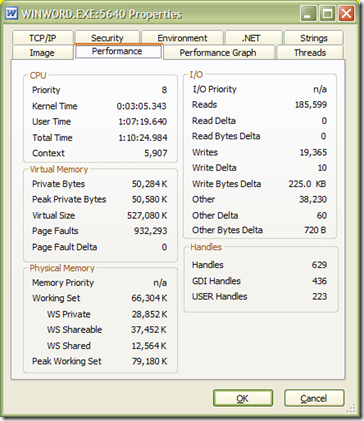
image 
(Performance stats, in case that’s useful to anyone — though it doesn’t provide me any telling evidence)

image
(Listing of the threads currently instantiated in WINWORD.EXE including the main thread, which is the one causing all the problems)
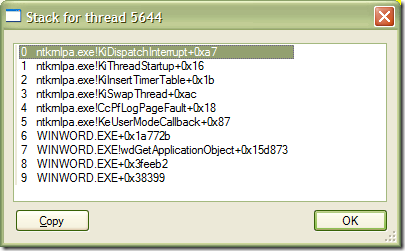
image
(Stack contents for the WINWORD.EXE thread)

image
(Stack contents for GdiPlus.DLL thread, which was the only other thread with any activity under the “CSwitch Delta” heading)

Process Monitor

Once I decided to investigate, I fired up Process Monitor and limited it to WINWORD.EXE.  The activity logged is almost entirely like this:
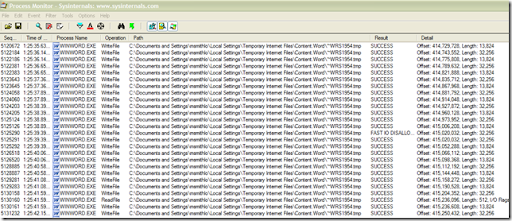
image

Don’t strain your eyes too badly on this — I’ve included this just to note the incessant nature of the major activity here: a rapidly-repeating WriteFile operation on a single Temporary file (~WRS1954.tmp), interrupted once in a while by a smaller (Length of anywhere between 512 and 3072) ReadFile operation on the same file:

image

Interestingly, these ReadFile operations occur in an irregular but repeating pattern:
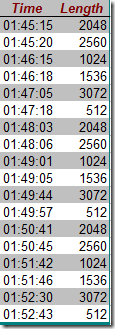
image

Also of note is the fact that this temporary file is constantly growing in size, and not just temporarily swelling the data stored within a pre-allocated file — I confirmed that by right-clicking on the Path in Process Monitor, chose “Jump to Location…” and simply Refreshed on the folder to observe the reported file Size was incrementing every time (over a span of 50 minutes, it grew by approx. 222 Kb, or 233657856 bytes).

If I look closer at the Handles for WINWORD.EXE, I notice that this is one of many Temporary files open by Word, which implies that the problem we’re experiencing is very specific to one type of unexpected activity (and not just affecting Word’s handling of Temporary files):
image
(Note: I intentionally “hashed” out the original filename, which is the last entry in the list pictured.)

One other piece of information: I tried to resize the Window in which the active document was being displayed.  Word appended “(Not Responding)” to its Title Bar, and that seems to have changed the behaviour profile of the WINWORD.EXE thread.  Since that point in time, Process Monitor did not record any further increase in the size of the ~WRS1954.tmp file, but recorded one additional ReadFile operation on the WINWORD.EXE file itself (Offset: 3998720, Length: 4096).  [WINWORD.EXE File version = 11.0.8169.0, Digital signature timestamp = May 31, 2007 12:38:03 PM]

Finally, I grabbed a full memory dump of the WINWORD.EXE process, using windbg.exe and the .dump /ma command.  I can’t say I know much about debugging a dump file, but I’ve got it on the off-chance that I ever find a good guide to debugging.

What Caused This?

Three circumstances I think contributed to this, though in my opinion none of them should lead to hung process (since I’ve done this more often without incident):

  1. I had opened a Word 2003 document directly from Outlook (it was attached to an email).
  2. The document had Track Changes enabled, and I’d already added Comments throughout the document.
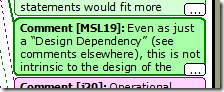
  3. In the Comment I was just editing, it had scrolled off screen…
    image
    …and I had just attempted to apply formatting (I’d typed [Ctrl]-B and [Ctrl]-I rapidly,to bold and italicize) to a single word in the Track Changes panel below the document (the one that opens automatically when you keep typing in Comments that have already “scrolled off screen”).

     image
    (Note: I intentionally redacted the confidential text — but it sure ain’t artistic)

Caveat: While my experience with Word over the years has taught me that heavy use and abuse of the Comments feature leads to instability, I’m still miffed that I’d lose the recent batch of edits just because I’d foolishly tried to emphasize my point using basic formatting in a Comment.

So What Can We Conclude So Far?

I don’t know much about reading a stack trace, so this is all guesstimation on my part (plus a little intelligence gathered from a good Russinovich article).  The WINWORD stack indicates that Word has called ntkrnlpa.exe aka the Windows kernel.  It looks like it’s basically stalled (KiDispatchInterrupt) while creating a new thread (KiThreadStartup).  Looking lower in the stack, the first caller in WINWORD is labelled only “0x1a772b” — whatever that is, it’s beyond my skills to unearth the identity of that API.

The next one down in the stack, however, is wdGetApplicationObject().  There’s no information in MSDN that references this function, though a few pages on the ‘net do allude to it (mostly in the same kinds of searches I made).  The best info I could find was here, which I’m guessing is Word’s way of getting a handle to the overall Word “application object”.  However, without any further context, it’s very hard to imagine what is really going on here.

Turning to the GdiPlus stack, it looks like another kernel call that’s stalled (many similar references to “WaitForMultipleObjects” functions), all boiling down to a call to the GdipCreateSolidFill() API.  From what MSDN documents, this seems like a pretty innocuous function, having nothing to do with temporary files, only to do with UI.  I can understand this — by the time I’d looked at the GdiPlus stack, I believe the UI had “hung” (aka it was non-responsive).  So while this thread was also active, it’s almost impossible for it to be involved in this issue.

Then the only thing I know for sure is the temp file was growing due to some runaway operation, and the runaway operation (which was probably related to an attempt to format Comment text) at some point obtained a handle to the Word application object.

I’m guessing that the only way to get any closer to the root cause would be to dig into the memory dump.  And…bugger me, the dump I grabbed ended up with this as its STACK_TEXT (from !analyze -v):

0adaffc8 7c9507a8 00000005 00000004 00000001 ntdll!DbgBreakPoint
0adafff4 00000000 00000000 00000000 00000000 ntdll!DbgUiRemoteBreakin+0x2d

Guess that’s “the wall” for me.

"Go/No-Go" Decisions on MyPicasaPictures, Attensa Sync to Google Reader, W2MW++

I’ve done a lot of investigatory work in the last few lunar cycles of different development projects I’d dreamed up.  However, after the investigation and the internal decision making was completed, I didn’t do a good job of “closing the loop” with any of you who have wondered “what happened all those projects?”.

I haven’t thought much about the royal “you” in this work — I’ve been sharing the steps and findings, but recently I started to wonder what people would think in the future if they happened to search on something that led them to one of these projects’ articles.  I’d feel pretty frustrated trying to find out where these things led (if anywhere) and where (if anywhere) there might be code that came out of these efforts.

Well then, it’s time to close the loop on these — at least, as much as I am “decided” on any of these so far.  That said, I’m never committed to any particular decision like this if any new evidence surfaces in the future to challenge my assumptions.  So if anyone is interested in picking up where I left off on any of this, drop me a line to let me know (I’m always interested in this kind of experimental work), and if you’d like to bounce some ideas off me, or see if I’d be interested in participating, I’ll always be open to such inquiries.

MyPicasaPictures: No-Go

Bottom line: while the effort to understand the VMC development environment was instructional and probably honed my ability to figure out what to look for in future explorations, my overall impression of MCML is that it’s just too damned hard for amount of value I might derive from it.

That, plus the chronic and unresolved stability issues I’m seeing with Vista Media Center (exacerbated by the merciless complaints and teasing I receive from my wife, who keeps saying “The XP box was much more stable, wasn’t it?”) have pretty much convinced me to pave the box, downgrade to Windows XP and to give Beyond TV a try.  [Their SDKs and more open, flexible architecture look like the perfect place to invest .NET development efforts, and the customer satisfaction with Beyond TV seems far superior to Windows Media Center, at least based on my initial research.]

Attensa Sync to Google Reader: No-Go

I had already decided to move from Attensa for Outlook to NewsGator Inbox, and then a few weeks ago NewsGator announced that their previously $30 Outlook client would henceforth be available for FREE to any and all concerned.

While there was no conversion possible from Attensa to NewsGator (well, I could import the OPML, but I couldn’t sync the “read/unread” status of all my articles, nor transparently migrate old articles to the new folder structure), everything else about this has been a positive experience.  I’m totally addicted to the NewsGator Mobile Reader for iPhone, and the fact that it syncs with my Outlook “read/unread” status is just awesome.  Congrats, NewsGator!

Attensa, I wish you luck in trying to survive the competitive pressures from NewsGator.  If I didn’t know better, I’d guess this is the beginning of the decline for Attensa, even though I think their Outlook client is superior to the current NewsGator Inbox offering.

W2MW++: Undecided

When I first read about the “export to MediaWiki” capability in OpenOffice Writer 2.3, I quickly concluded that any work I or the rest of the community had done for an Office add-in would become a moot point.  [Amusing but not-entirely-inaccurate Spoonerism: my wife knew a guy who insisted that the term was “a mute point”.]

However, after using Writer 2.3 to convert a few relatively simple Word 2003 documents to MediaWiki format, I realize that they still have a long way to go to preserve real fidelity of layout and formatting in Word documents.  I have faith that they’ll get there, and that eventually Writer’s integrated engine will become the translation engine for .DOC & .DOCX, but I now feel like there’s a significant unmet need that the work I’ve invested so far in W2MW++ could still address, and that that unmet need will exist for quite a while yet.

That said, there’s one thing that’s been bugging me for a few months now: the name.  WordToMediaWikiPlusPlus is a clever extension of the Word2MediaWikiPlus project, and it makes obvious the heritage of W2MW++, but it makes it sound like the project is more “hardcore” than it really is.  If I had my druthers, I’d rename the project “Word2MediaWiki.NET” (W2MW.NET), to make it clearer that the project is based in .NET code, not C++.  I’d hate to think anyone would be disappointed by the fact that it’s written in one of these “shiny new” languages — there’s something more “honest” or “obvious” about using the “.NET” suffix instead.

Now all I have to do is figure out how to Rename all the dozens of “++” references throughout the project AND figure out how to get a CodePlex project renamed.  [THAT should be fun :)]

MindManager 7 "ToDo List" Add-in development Part 2: Adventures in Add-in Installation

MindManager 7 provides the ability (through the MindManager options menu) to inspect and enable/disable already-installed add-ins.  However, it’s not clear from the UI nor Help file how to install an add-in for MindManager.  The DevZone article indicates that once I’ve built the assembly it should be installed in MM7 automatically, but I’ve built it many times and it definitely doesn’t show up in the listed add-ins in MindManager:

If the code compiled successfully, your add-in DLL was created and registered with MindManager. At this point, you are ready to test your new add-in.

I’d posted a couple of requests to the MM7 developer user forum and that’ll probably give me some clues, but in the meantime I happened to find this blog article (Creating a MindManager 7 Add-in Sample) from last summer, and spotted this gem:

“Probably the most useful thing the wizard does is create a Setup project that carries the Windows Registry settings needed to let the MindManager application locate the Add-in component at load-time.  These settings are used by MindManager to discover and load selected Add-in components.  If they are wrong, your Add-in never makes  it onto the available Add-ins list.”

[That sharp sound you heard was my hand hitting my forehead]  Duh, indeed.

Registry Settings Are the “Key”

It appears that the critical piece of info I hadn’t found in the documentation (MM7 Help file, DevZone walkthrough) was the existence of the Registry Key HKLM\Software\Mindjet\MindManager\7\Addins\.  The add-in downloadable from the “Sample” blog article creates the following in that Addins key:

  • Key = MmxSample.Connect [i.e. the ProgID for the add-in]
    • Value: FriendlyName (REG_SZ) = Pandimonium[sic] Productions Mmx Sample Add-in
    • Value: LoadBehavior (REG_DWORD) = 2
    • Value: Description (REG_SZ) = A sample MindManager Add-In to dump map contents

As well (though I wonder if this is optional — at least while developing the add-in), the Setup project creates the following entries under HKCR (HKEY_Classes_Root):

  • Key = MmxSample.Connect
    • Key = CLSID
      • Value: (Default) (REG_SZ) = {925b5786-bf6f-4ac5-9df1-61ee50a815ca}
    • Value: (Default) (REG_SZ) = MmxSample.Connect

Since these Registry values are static, it appears that MindManager enumerates the keys under \Addins at each startup.  Therefore, I believe that just building the add-in assembly does not magically make MindManager aware of the add-in you’re developing.

So perhaps I can just populate my Registry settings by hand?  The AddInSetupen.vdproj file for my add-in’s setup project intends to set these values:

  • [\Addins] Key = ParanoidMike.ToDoList.AddIn.1
    • Value: FriendlyName (REG_SZ) = MM7TODOList
    • Value: LoadBehavior (REG_DWORD) = 2
    • Value: Description (REG_SZ) = MM7TODOList|Built by ParanoidMike|Version 1.0.0

Grrr

Oh hell.  I just went back to the DevZone walkthrough article, and the next thing (just beyond the point at which I abandoned the walkthrough) is this page that documents exactly the Registry settings I just unearthed.  Man, this is truly time to let it go for the evening…

One Open Question

My project’s Setup does not currently populate any HKCR settings!  Is this the cause of the “unrecoverable error” when building the Setup project?

MindManager developer resources

These are the various sources of information I’ve stumbled across so far that are useful for me (a budding MindManager add-in developer):

Resources related to Custom Properties

I anticipate leveraging custom Properties in my add-in, so I’ll want to dig into these articles when I get to that point:

If you can’t pronounce it, you shouldn’t get to make policy on it

It amazes me that one of the most powerful people in the world (a Yale
“graduate”, though that just proves how little that must mean these
days) still hasn't learned how to pronounce “nuclear”.

I can understand that science can be a hard subject, and god knows
that man displays surprising lack of intellectual horsepower, but on
this my opinion is unwavering: if you can't even spend the time to
learn how the word is pronounced, you couldn't possibly convince me
that you're even listening to the “elevator pitch” summaries of the
key issues, let alone sat down and really weighed the difficult
questions around nuclear power.

So ParanoidMike's Rule of Power power is simple: if you can't
pronounce it, you don't get to create or influence policy on it. A
retarded chimp shouldn't have their hand anywhere NEAR the button.

Developing a MindManager Add-in for Staying On Top of my ToDo Lists

I’ve made a few attempts at staying “on top of” my workload using tools like the Getting Things Done add-in for Outlook, MindManager, and even tried the ResultsManager add-in for MindManager. Each of them help, but somehow they all seemed a bit too “high maintenance” for my needs — they required a great deal of management of metadata about each project and task, and yet I always found it hard to get a simple “to do list” summary of stuff I need to do.

It wasn’t that I couldn’t get some subset list or grouping of my tasks. I just couldn’t quite make it work for me in a way that made it easy to see what I really needed to work on.

My Woes with the Commercial Alternatives

With the GTD tool, I could see my tasks grouped by Project or by “context” (a GTD-ism for “if I’m near a phone, I should knock off all my calls; if I’m by my computer, I should knock off a bunch of computer-needing tasks all at once”). However, while I was really good about collecting all my tasks, I wasn’t so good about understanding which of them was most urgent — it all just became one big pile and I could never get a “meta-view”. I also could never get the hang of using the Prioritization field that should’ve allowed me to order & re-order all the tasks without regard for their project/context grouping.

Ages ago I’d even tried Taskline, which adds even more metadata to the Tasks in Outlook, but even with the combination of Taskline and GTD, I wasn’t able to make any more sense out of the 200+ tasks that I’d be able to collect, each time I gave these things a try.

With MindManager, I’m able to pull together a random set of ideas, tasks, steps, requirements and issues, and re-group them in ways that make sense once I’ve got them all in the same “place”. However, while it has some integration with Outlook, and I should be able to sync Tasks bidirectionally, I can’t say I’ve ever committed to the notion of marrying the incredible number of Tasks I’ve already got in Outlook to the scattered (and possibly overlapping or conflicting) musings I’ve got in MindManager.

When I added ResultsManager to MindManager, I was blown away by the UI, the great number of useful metadata I could assign to my “project planning” items (though such efforts on my part are a great insult to those skilled/sick individuals who actually know how to manage projects), and the really well-thought-out introduction process they used to familiarize customers and get them up and running quickly. However, I found that once I got all my projects, deliverables and tasks into the environment, I was still struggling to (a) find a ResultsManager template that would give me that “holy crap” daily/weekly view of my critical tasks, and (b) prioritize all my tasks relative to each other when they’re gathered together in one mind map. I’ve even tried discussing this with some of their technical evangelist types, but for all the work they did in trying to explain how to customize the ResultsManager environment, something about it didn’t click for me.

I really like the concepts behind ResultsManager — tagging items that are in multiple maps and gathering them into one “meta-map”, organizing projects into sub-deliverables and tasks, using icons and other visual elements to help annotate the information. I liked the flexibility in the design, and the implicit promise that it’ll help you see the patterns and overall workflow.

However, it doesn’t quite live up to that — at least not for me, with only a moderate amount of time invested in the training they provide for newbies (and poking around their forums and discussions). And frankly, I didn’t like what I saw when I looked under the hood — it’s all written in VBA, and becomes a real hog at any sort of scale. They’re interested in developing in .NET (or VSTA?), but between that and the effort to simplify the usability, I can’t imagine it would be really ready in time to keep me from getting fired. (I’m kidding, mostly.)

Build My Own MindManager add-in

So I’ve decided to explore the effort it would take to do something similar, but aimed at one single goal: produce a ToDo List from the task items scattered throughout my MindManager maps, and be able to prioritize (i.e. re-order) them in a persistent manner.

I know that Mindjet has produced some resources for developers who wish to add functionality to MindManager:

  • a Visual Studio template for C#/VB development
  • a Primary Interop Assembly (PIA) that installs by default with MindManager Pro 7
  • a free community portal where documentation and resources are available for registered developers

Once I downloaded the VS template, installed it, and created a new project from it, I was surprised at how many different files were generated by the wizard: there’s AssemblyInfo.cs, Connect.cs and Utility.cs in the Addin project, then a Common project and an AddinSetup_en project. This made me think there’s probably a tour of the different components in the MindManager add-in project somewhere on the Mindjet developer site, and that I’d probably earn a few shortcuts in my development time if I read up on this first.

Browse over to the Mindjet Devzone. That’s where folks like me (as well as professional development organizations) can get at the really cool developer resources. Once you’re registered, you’ll be able to access resources aimed at MindManager version 6 or version 7 such as “How to Create a MindManager 7 Add-in Using C#” and the “MindManager 7 Object Model Reference“. They even provide a downloadable archive of all their online documentation if you’d rather just dig through the info without having to login each time.

Now, it’s not well-documented where a guy like me should start, but it’s a pretty good guess that “How to Create a MM7 Add-in using C#” is a likely walkthrough for newbie developers. And as it turns out, this is definitely targeted at a C# developer who’s just starting into MindManager development.

You will need to read the guidance with a grain of salt, however; there’s a lot of steps specified in the first few sections that don’t apply if you’re using Visual Studio 2005 + the MM7 addin template (i.e. MM7AddInTemplateSetup2005.msi found in Mm7AddInTemplateSetup.zip).

[Also note: if you’ve got the same setup that I happen to have — which is to say, Visual Studio 2005 and Visual Studio 2008 installed side-by-side — then you’ll probably have to create your MM7 add-in project in VS2005 and then open it in VS2008. I couldn’t find a way to install the MM7 add-in template so that it showed up in the VS2008 “New Project” selection, but that’s probably because I haven’t uninstalled VS2005 yet.]

Brewing Problem

I don’t know why, but I decided to try building the Solution before I spent too much time writing code. It turns out that there are three errors with this Solution, and I don’t think the minor changes I’ve made could possibly have caused all this damage:

General failure building custom actions C:\personal\VS Projects\MM7TODOList\MM7TODOList\Common\Common.vdproj (Project=)Common

Unrecoverable build error C:\personal\VS Projects\MM7TODOList\MM7TODOList\Common\Common.vdproj (Project=)Common

Unable to import merge module ‘C:\personal\VS Projects\MM7TODOList\MM7TODOList\Common\Debug\Common.msm’ C:\personal\VS Projects\MM7TODOList\MM7TODOList\AddInSetUp\AddInSetupen.vdproj (Project=)AddInSetup_en

I figure I better get these problems resolved before too long, or else I won’t be able to debug this project and even bigger issues will go unnoticed. I’ve posted this issue to the MindManager developer forum, and I hope it gets answered soon. 🙂

Update: For the benefit of everyone who’s waited with baited breath…

Well, even if you just want to know how to deal with this, here’s what Mindjet Developer Support told me:

“The solution on the DevZone is based of VS 2005 that’s why (I am assuming) that you could not get it to compile on VS2008. I have modified your project a little bit (removed custom actions) and it is working fine.”

Couple of Open Questions

  1. What’s the difference between adding a Reference in the References section of the Solution Explorer, and adding the “using CLASSNAME” statement in each source file?
  2. If I wanted to rename a namespace after I created the project, can I just right-click on the name of the namespace (e.g. MM7TODOList) and choose Rename? Or do I need to find other dependent code fragments that don’t get updated automatically?